After watching D. Joshua Taylor’s Rootstech session “Do I Trust the Cloud?” earlier today, I thought it might be a good idea to finish a blog post I’ve had in limbo for quite awhile now – how to encrypt your data to protect it if you use a cloud-based sharing or storage service.
But, that post of mine is mainly “How To” and not “Why To.” Here I’ll address some of the Why first.
First, I liked D. Joshua Taylor’s presentation. It had very many good points on the value of using cloud services, both from a data preservation and a collaboration standpoint. I’m all in – I use cloud services all the time and I’m with him on the potential of using these tools.
 But, we need to remember that these cloud services are just that – tools. They are not a panacea for your security nor your data storage and backup concerns.
At the start of the talk I felt he was overselling the “trust the cloud” part of his argument for using such services. He then followed up with a discussion of the pitfalls of cloud services and things one might want to verify with a service provider to insure their data was safe and available.
That was great – but as a security professional, I still think it felt a bit too much like the ultimate takeaway was “they’ll take care of your stuff and they’ll figure out how to make it secure, since it is in their best interest as a business to do a good job.”
Well, maybe. If you think cloud services (or any company) have it all figured out or are close to it, then you might want to leave your happy place for a minute and take a look at any day’s conversation on my Security & Privacy Twitter list of infosec professionals. Then, you might meander over to the DataLoss Database and check out the latest reports. It ain’t pretty
 While I’m a fairly heavy user of cloud services, I make sure that I have a definite plan for knowing what data I have, keeping multiple copies both in the cloud and locally, as well as maintaining a system of managing a string of backups over time.
I mean, who hasn’t overwritten a file by mistake? Raise your hand? Higher! I thought so.
Well, that can still happen with cloud-based services. Or, someone might breach the cloud service. Or, your local system might get infected, leading to easy access to your cloud data. Or, a service might change their privacy policy regarding your data – and once your data is out there, between backups and cached copies, there’s (almost) no un-ringing that bell.
Your data is still your data, no matter how you store it and to protect it you need to plan for the worst-case scenario. Because the funny thing about worst-case scenarios is when you expect them and plan for them, they don’t show up as often. Remember:
“Chance favors the prepared mind.” – Louis Pasteur
OK, so I’m done with building the bleak house. But, let’s just move forward with the following tenets in place:
- You need to decide how important each type of data is to you, and what might happen if it fell in the wrong hands.
- You can’t know for sure how secure any online service is, so act as if they are insecure. No matter what they tell you.
Realize now that I’m not saying you should consider these cloud services as evil, incompetent entities. Use them. Love them. Send them Christmas cards and name your children after them. But we all need to be realistic about both the opportunities they present and the risk you take when putting your stuff “out there.”
For me: Putting my open research and photos in the cloud? Great! Cousin Bait! Research help! Collaboration! Putting my taxes and medical records in the cloud? No thanks; the risk outweighs the benefit.
Here’s a simple way to harness the goodness of something like Dropbox without exposing your bits to the elements: Encrypt your data before you put it in the cloud.
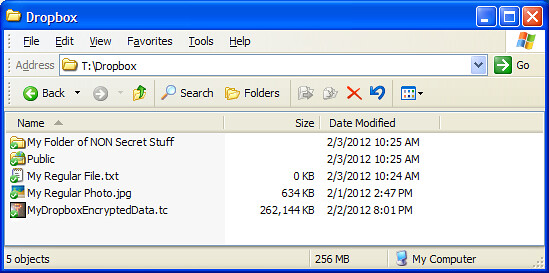
TrueCrypt is a free open-source encryption software and is available for all major operating systems. You can encrypt an entire disk, or for our purposes here: create a virtual encrypted volume to put your data in. From your operating system’s perspective, this volume is simply another file.
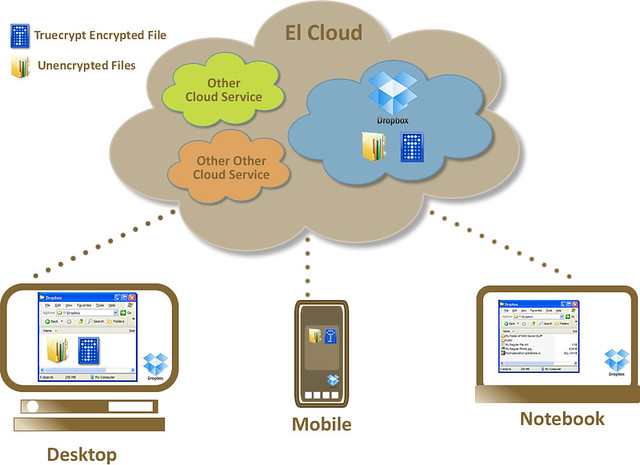
 At right is a simple diagram of using Dropbox and Truecrypt together to protect your data over and above the protections in place by the cloud provider.
For example, I have Dropbox installed on my desktop, laptop and mobile devices. I have regular folders and files in it and a public folder for sharing with others. I also have an encrypted Truecrypt volume (read: file) that gets synced along with those other files.
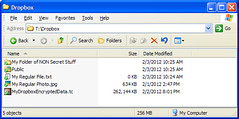 A Truecrypt volume contains a file system within it – so you mount the volume using the Truecrypt software, enter the correct password and it will look just like any other drive on your system. You can work with the files there just as you would any other.
When you are done working with the files, simply dismount the Truecrypt volume and Dropbox will sync it as usual. So you can have it all: availability, security and convenience.
I hope that wasn’t too long a post and that my soapbox wasn’t too high. It is an exciting time to research family history and to work online. But, sometimes we need to work to try not to get *too* excited.
In my next blog post I’ll provide some details and screen shots on how to create a secure Truecrypt volume.